Pages

Monday, 14 April 2014

RoyalTSX for vEXPERTS

If your a vEXPERT then code4ward.net are offering you a free NFR license to either the Windows or Mac version of Royal TS software.  More information is available at the links below and you can request your free license here:

Royal TSX
Royal TS

First of all, BIG THANKS to the guys for offering this to the community, it's very much appreciated.  I've been looking for a decent remote desktop solution for accessing my homelab on both my internal network and externally on public Wifi spots etc.  I normally use the Microsoft Remote Desktop application which has served it's purpose well as it offers full screen access but more especially access via Remote Desktop Gateway so I don't have to VPN back into my lab all the time.  The only issue I had with it was when working on multiple servers I had to swap spaces or have multiple connections on screen and keep swapping between them.  When I wanted to SSH into hosts then I'd have to open putty or terminal and access the console from another window.

Since installing Royal TSX it's now my default Remote Desktop application for accessing anything in my lab as well as on customer sites.  In the screen shot below you can see I have a connection to both my Windows 7 jumpbox PC as well as an SSH session into a host and it's interchangeable via the tabs:


It supports Remote Desktop Gateway and obviously all the usual functionality with regards to creating a credential store to automatically pass through your credentials.  It supports connections via RDP, VNC, Terminal and web pages all via installable plugins.  I've only been using it for a week but so far I'm very impressed.

David Owen (Blog | Twitter) has a great post of all other vendors who help out the community, not just VMware, with freebies and NFR licenses.  Thanks very much everyone, it's very much appreciated.

Monday, 7 April 2014

VDP Advanced Error - Failed to initiate a backup or restore for a virtual machine. Probable cause is the datastore for the virtual machine is not accessible

I've recently been upgrading all of my VM's from Windows 2012 to 2012 R2 and now it was time to deploy a new domain controller.  I build the new DC, promoted it and migrated DHCP etc and all was well.  It was then time to re-configure all my VM's to point to the new DC for DNS resolution.  I changed the VDP appliance to use the new DC for DNS and rebooted as requested.  When checking my backups the next day I realised that they have all failed with the following error:

Error: Failed to initiate a backup or restore for a virtual machine.  Probable cause is the datastore for the virtual machine is not accessible


In order to try and resolve the issue I change the DNS server back to the original DC and rebooted.  I really didn't think this caused the initial issue but it was the only thing that had changed.  As expected, this didn't resolve the issue.  When searching for the resolution I did come across this KB article which asks you to verify that all datastores are actually associated with hosts but this did not resolve my issue.  I finally tried rebooting the hosts to see if this resolved and also re-creating the backup job but no success.

After following Cormac Hogans (Blog | Twitter) excellent article I realised that there were no log files available from the date the issue started happening which was Thursday 3rd April (Last successful backup was on the 2nd April)


So, I guess what I'm really asking now is has anyone else seen this issue or can anyone point me in a direction to start investigation?

Update - 7/04/2014

After searching through various log files and google I did find this article which shows an error message that I was seeing in one of the log files.  The resolution was to stop and start the MCS service with the following commands via an SSH session:

dpnctl stop mcs
dpnctl start mcs

After doing this the backups still failed but I then gave the appliance another reboot and it looks like that might have resolved it.  A backup of an individual machine is currently running so I'll see what happens tomorrow morning

Update - 8/04/2014

All backups have completed successfully last night so looks like the fix above has worked.  


Wednesday, 2 April 2014

vEXPERT 2014

Well the results for the vEXPERT 2014 nominations have been released and I'm pleased to say that I made it for a 2nd year running.  There were 754 people who made the list so congratulations to everyone.  The full list can be found here

A special thanks goes out Corey Romero and John Troyer for all the hard work involved in vetting all the nominations and also arranging all the back end logistics, thanks guys.

Wednesday, 12 March 2014

VMUG Presentations

Just a quick post to say that I will be presenting at the following VMUG's this month:

Thursday 13th @North East VMUG

At the North East VMUG I'll be giving a presentation on Home Labs and what I currently use at home.
You can register for the VMUG here

Thursday 20th @ Scottish VMUG

At the Scottish VMUG in Glasgow I'll be giving a deep dive in whats new in vSphere 5.5 with demo's around the new Web Client, 62TB VMDK's, vSphere Flash Read Cache, Traffic Filtering and Packet capturing.

You can register for the VMUG here

Sunday, 23 February 2014

vSphere Top Blogs

Just a quick post to say that Eric Siebert (Blog | Twitter ) over at vSphere Land has opened the poll for the top blogs for 2014.  Last year I made it into the top 200 so I'm gonna see if I can do a little better this year.  So, if you've found anything useful on my blog at all then please vote for me via the VOTE link below.

Big thanks go out to Eric and all the sponsors.  I know he put a lot of effort into this all in his own time and it's very much appreciated.


Thursday, 6 February 2014

First Three Months at VMware

Well, i've survived my first three months at VMware and this is just a quick post about how it's been, so to sum it up in one word, WOW.  First of all, VMware do a great job with the on-boarding process.  They have a structured approach to learning with tasks and goals that you should complete by day one, week one, month one, month two and month three.  I was advised that the first task I should complete was to order my company credit card as it comes in extremely handy.  But honestly, the entire process was easy to follow and all the training is online.  The training at VMware is by far the best I've had compared to all my previous employers.  I'm currently sitting in a hotel room in Ascott as I'm on START training which is new hire training for all of EMEA and it's ran once every three months.  I think there are currently around 93 employees from all over EMEA here which shows how much VMware values training their employees.

As mentioned in a previous post this is the first time i've moved from an operational role to a pre-sales role and so far it's going great.  I'm enjoying getting out and about, meeting customers, engaging with partners and everything that comes in between.  I still feel I have a long journey ahead especially not coming form a pre-sales background but it's definitely an exciting time at VMware.  Another three months and hopefully I'll pass the six month probation.

Tuesday, 28 January 2014

Creating and running an Automated Backup Verification job in VDP 5.5 Advanced

VDP 5.5 Advanced has the ability to perform an automated restore to a "sandbox" environment executed according to user defined schedules.  This allows you to perform regular automated restores of your virtual machines at specific times to ensure that you can recover those virtual machines in the event of a disaster.  The way it works is it restores the virtual machines to a specified datastore, powers it on and then waits for the VMware tools heartbeat.  Once it receives the heartbeat it will power off the virtual machine, delete it from vCenter and then class the restore as successful.  You can also configure a script to run which could perform additional tests.  To get started you need to be using the Advanced version of VDP.  Simply log into vCenter, connect to the VDP appliance and then click on the Restore tab and then Backup Verification:


Click on the Backup Verification Job Actions icon and select New:


Select the virtual machine that you want to enable the automatic backup verification job for and click Next:


If you would like to run a script within the virtual machine after the restore then enter the required information.  In this example I'm not going to bother so I'll just click Next:


You now need to specify a destination path to restore the virtual machine to.  This needs to be a specific host.  Simply click the Choose button and then navigate to the host that you would like to restore the virtual machine to and click OK:


Specify what Datastore you would like to restore the virtual machine to.  In my example I'm just going to use the locally attached datastore rather than an iSCSI or NFS datastore.  Once finished click Next:


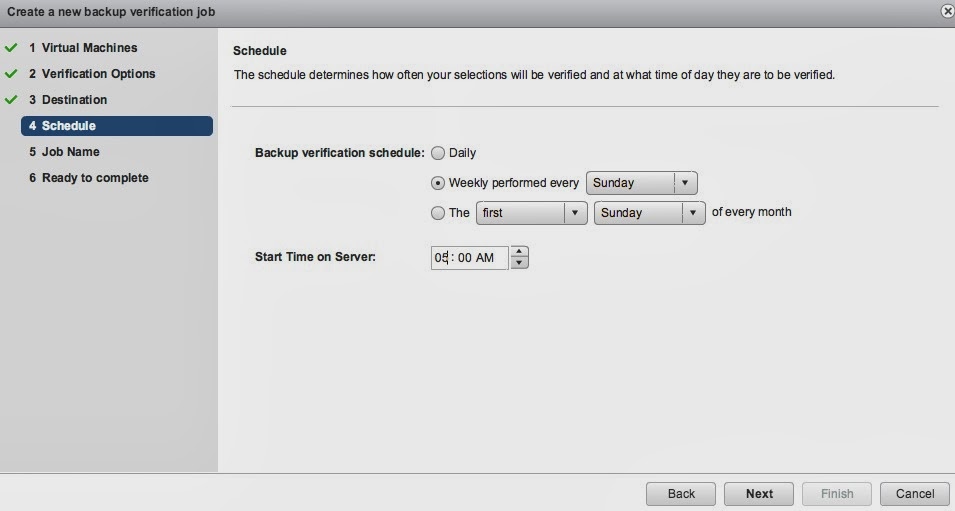
Now select a schedule of when you would like this job to run.  In this example I'm going to run it every Sunday at 05:00.  Click Next when finished:


Give the backup job a name and click Next:


Finally verify all your settings are correct and click Finish:


The backup job should be created successfully and you should see it appear in the list:


You have now successfully created an automated backup verification job.  You can either wait until the scheduled date / time or manually run the job.  To manually run the job simply click Verify Now:


The restore job will start and you can monitor it's progress via the Task Console:


You will also see the virtual machine appear in the web client inventory view:


The virtual machine will be restored, powered on and once a heartbeat has been received from VMtools it will be powered off and then removed from the environment.  It's important to point out that the virtual machine will be connected to an internal only network so as not to interfere with production systems.  If the automated backup verification completed successfully then you will see the results in the reports tab within the VDP appliance (Just ensure you select the option to show backup verification):


You are now safe in the knowledge that your backups can be restored and you have a mechanism to prove to management or audit that these tests are being completed on a regular basis.